{{ post.title }}
글 편집
글 편집 (이전 에디터)
{{ post.author.name }}
작성일
| Version | {{ post.target_version }} | Product |
{{ product.name }}
|
|---|---|---|---|
| Tutorial/Manual | {{ post.manual_title }} | Attached File | {{ post.file.upload_filename }} |
 '
'
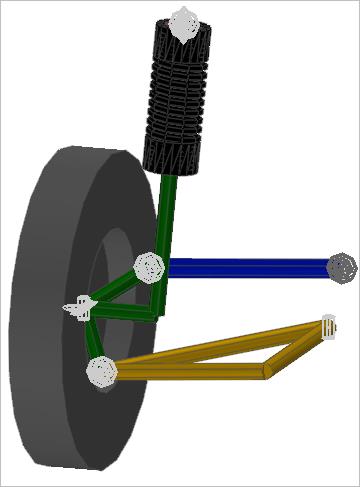
[034] RecurDyn을 실행하지 않고 해석을 수행하는 방법 : <Batch Simulation 초급>을 통해 Batch Simulation의 기초적인 사용방법을 익히셨다면, 이번에는 Batch Simulation을 이용한 Design Parametric Study 방법을 알려드리고자 합니다.
STEP 1 : Export Design Parameter File
1. 첨부된 예제모델을 오픈하고 Design Parameter로 사용될 Parameter를 정의하기 위해 Parametric Point List에서 아래 그림과 같이 DP항목을 체크합니다. Design Parameter(DP)는 Design Parametric Study의 목적과 모델의 특성에 따라 PV와 PP를 DP로 지정할 수 있습니다.
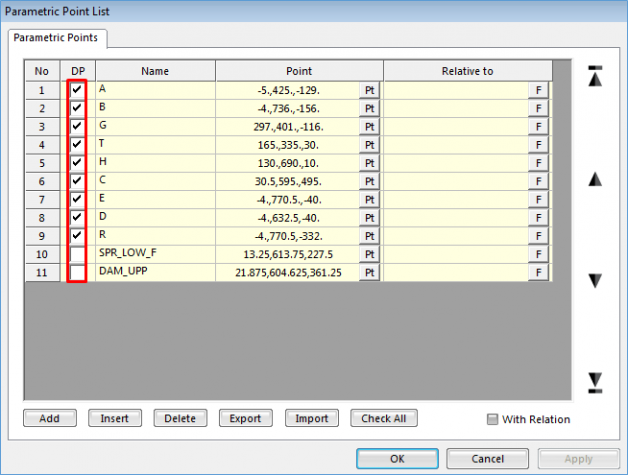
Parametric Point dialog box
2. RecurDyn Design Parameter File(*.rdp)을 Export합니다. RecurDyn의 ‘System Button Menu‘에서 Export를 선택하여 rdp파일을 아래와 같이 저장합니다.
◾rdp파일 Export 시 파일명 지정 : DP_1.rdp
◾Export완료 후 생성되는 파일 : DP_1.rdp, DP_1.rpp (Parameteric Point File)
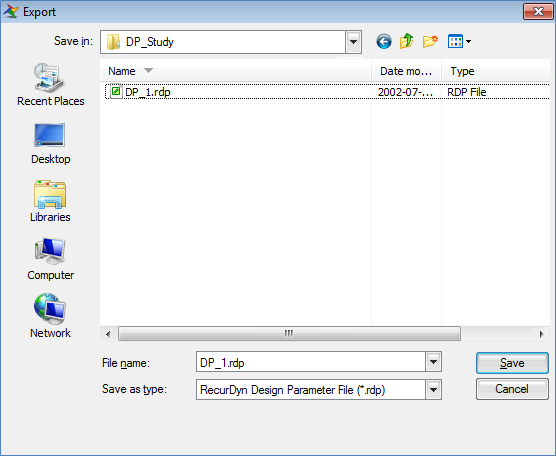
dialog box of Export
※참고 사항 : Batch Simulation을 진행할 폴더를 미리 생성하여 현재 생성된 파일을 포함하여 앞으로 생성될 파일을 해당 폴더에 저장하시기 바랍니다.
STEP 2 : Export the RSS file
1. RecurDyn Scenario File을 아래와 같이 정의하고 Export 합니다.
◾rss 파일 Export 시 파일명 지정 : DP.rss
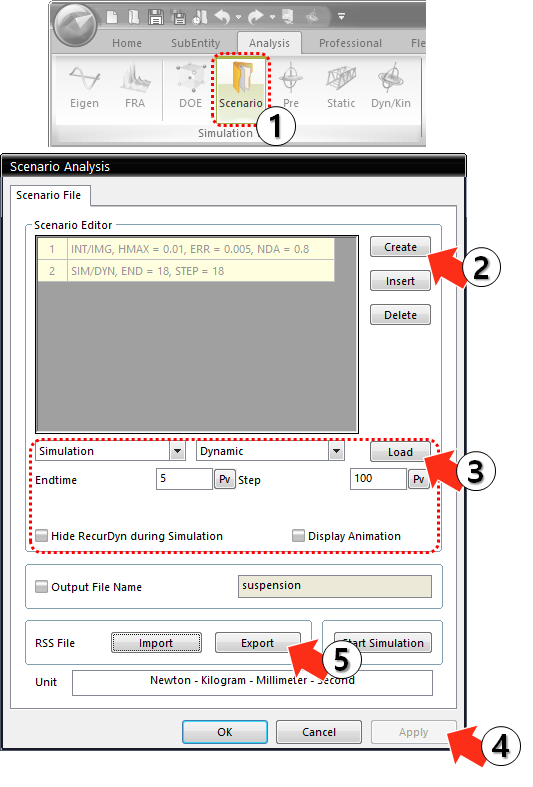
◾INT/IMG, Max.Step=0.01, ERR=0.005, NDA=0.8
◾SIM/DYN, END=18, STEP=18
2. 저장된 DP.rss파일을 Text editor로 열어 내용을 아래 그림과 같이 확인합니다.
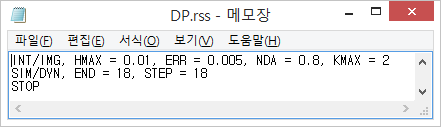
RSS File