{{ post.title }}
글 편집
글 편집 (이전 에디터)
{{ post.author.name }}
Posted on
| Version | {{ post.target_version }} | Product |
{{ product.name }}
|
|---|---|---|---|
| Tutorial/Manual | {{ post.manual_title }} | Attached File | {{ post.file.upload_filename }} |
FAQ [034] How can I analyze a model without running RecurDyn?
<batch simulation basic> covered the basics of how to perform a batch simulation. This FAQ will teach you how to apply batch simulation to a design parametric study.
To start, perform the following steps:
STEP 1 : Export Design Parameter File
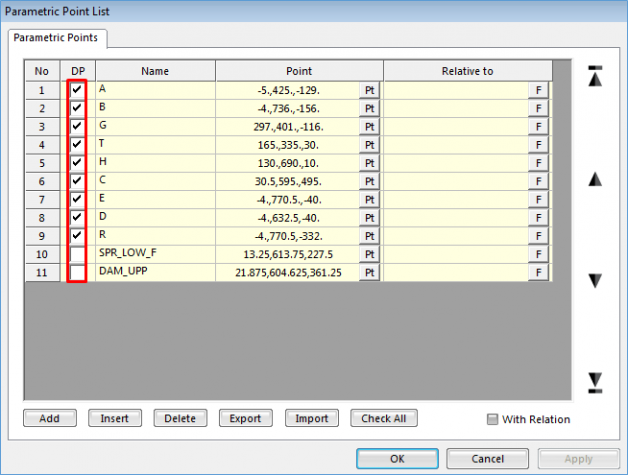
1. Open the sample model. In the Parametric Point list, specify the parameters to use as design parameters (DPs) by selecting the DP checkboxes. You can specify PVs or PPs as DPs depending on the characteristics of your model and the purpose of design parametric study.
2. Export the RecurDyn design parameter file (*.rdp). In the System Button menu, click Export, and then save the *.rdp file as follows:
◾ Specify DP_1.rdp as the name of the rdp file to export.
◾ After the file has been exported, the DP_1.rdp and DP_1.rpp (parametric point) files will be created.
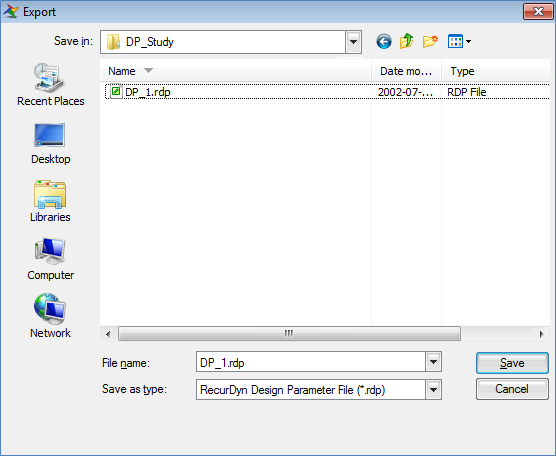
dialog box of Export
※ Note: Create a batch simulation folder, and then save all of the files necessary for current and future batch simulations in this folder.
STEP 2 : Export the RSS file
1. Define the RecurDyn scenario file, and then export it as follows:
◾ Specify DP.rss as the name of the rss file to export.
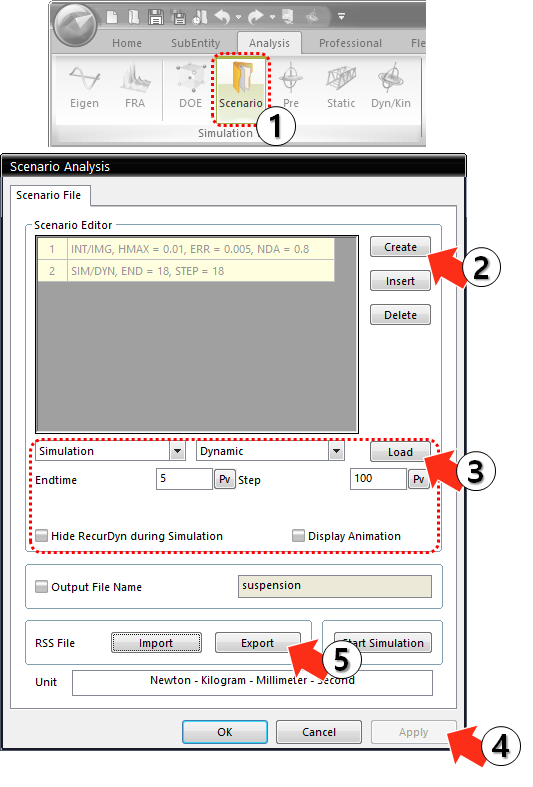
◾INT/IMG, Max.Step=0.01, ERR=0.005, NDA=0.8
◾SIM/DYN, END=18, STEP=18
2. Open the DP.rss file in a text editor, and confirm that the following content appears.
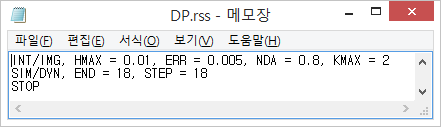
RSS File
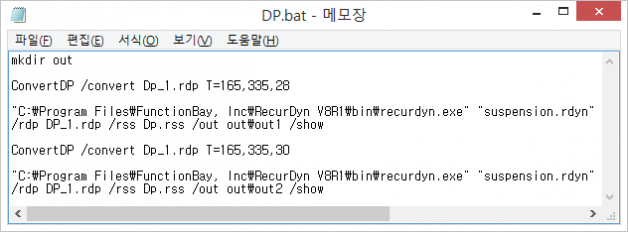
Batch File Format