


{{ post.title }}
글 편집
글 편집 (이전 에디터)
{{ post.author.name }}
Posted on
| Version | {{ post.target_version }} | Product |
{{ product.name }}
|
|---|---|---|---|
| Tutorial/Manual | {{ post.manual_title }} | Attached File | {{ post.file.upload_filename }} |
It is possible to convert a Beam element (1D element) into an RFlex body (It is limited to supported element types). This information is available in the Supporting elements category in the Help.
There are two ways to create an rfi file using RFlexGen. One is to create an rfi file using a flexible body created by an external program. The other is to create it directly from a flexible body (FFlex body) created by RecurDyn.
1. When converting an external file, the following file types are supported.
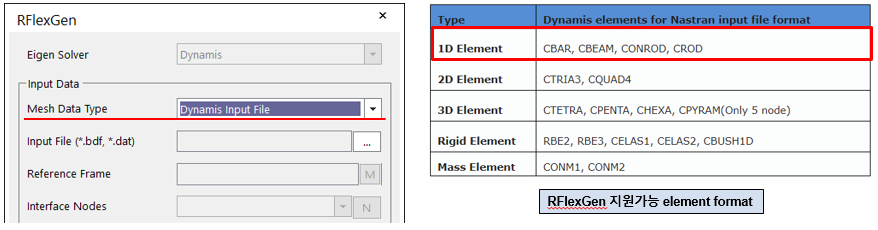
1D Element is a Beam type, 2D Element is a Shell type, 3D Element is a Solid type flexible body. Each type can be further subdivided. The supported formats are specified based on a Nastran file format.
2. The cases of using RFlexGen with an flexible body created by RecurDyn are as follows.
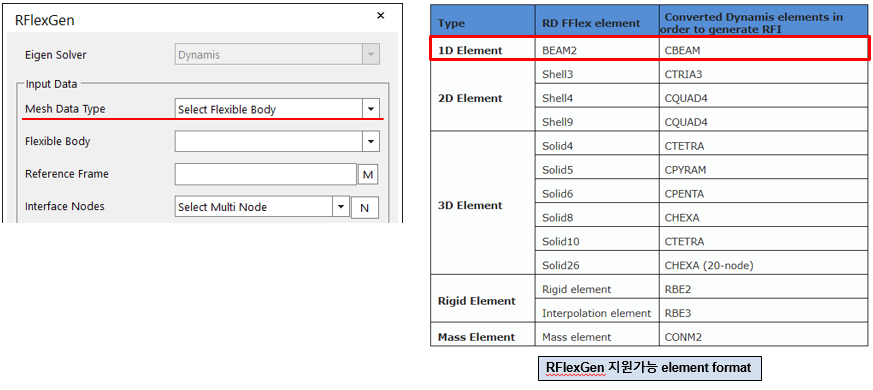
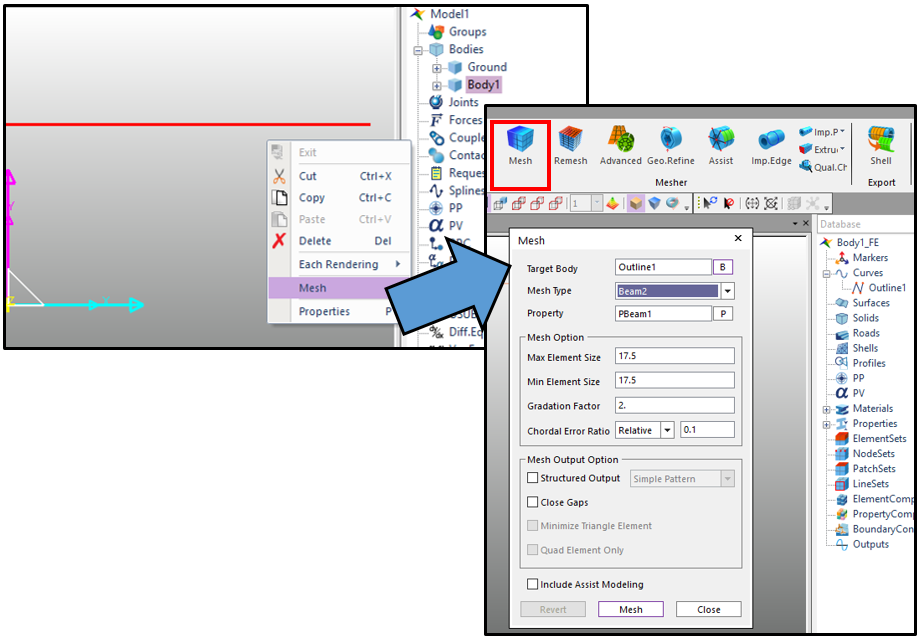
Select the body with curves and run the mesh. When executing the mesh, make sure that the mesh type is beam2.
Conversion into RFlex Beam (Using G-Manager)
Rigid, FFlex, and RFlex bodies can be converted easily using G-Manager.
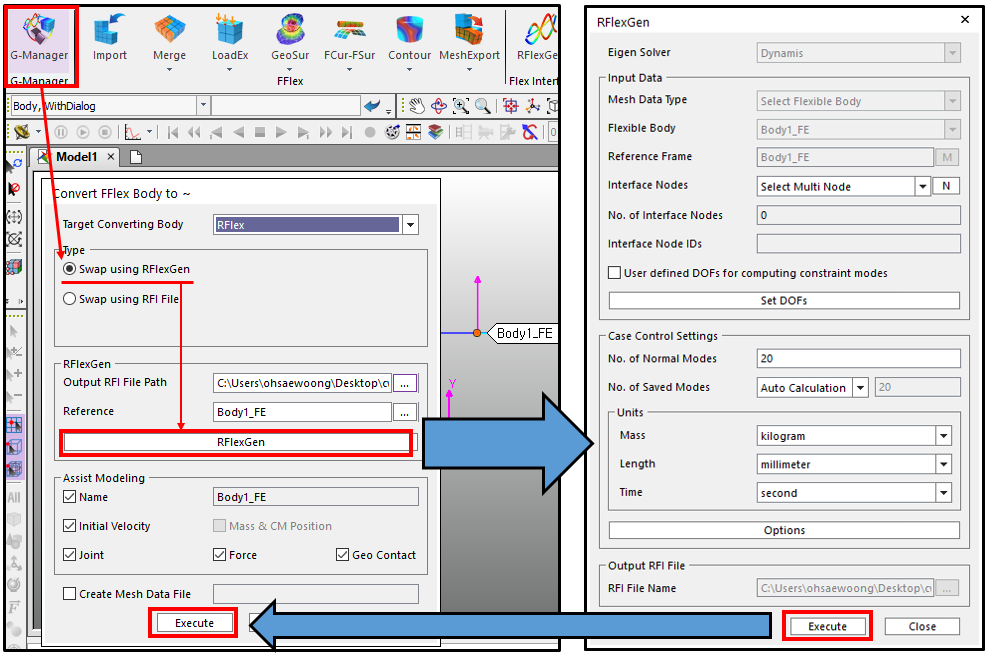
If you set a Target Body to RFlex, you can choose whether to convert using RFlexGen or using a previously created rfi file. If the rfi file is not available, select ‘Swap using RFlexGen’ and run RFlexGen by clicking on the RFlexGen button in the G-Manager window. After you create the rfi file by clicking on the Execute button, you return to the G-Manager window. The Execute button in the G-Manager window converts the previously selected FFlex body into an RFlex body.
※ Swap using RFI file
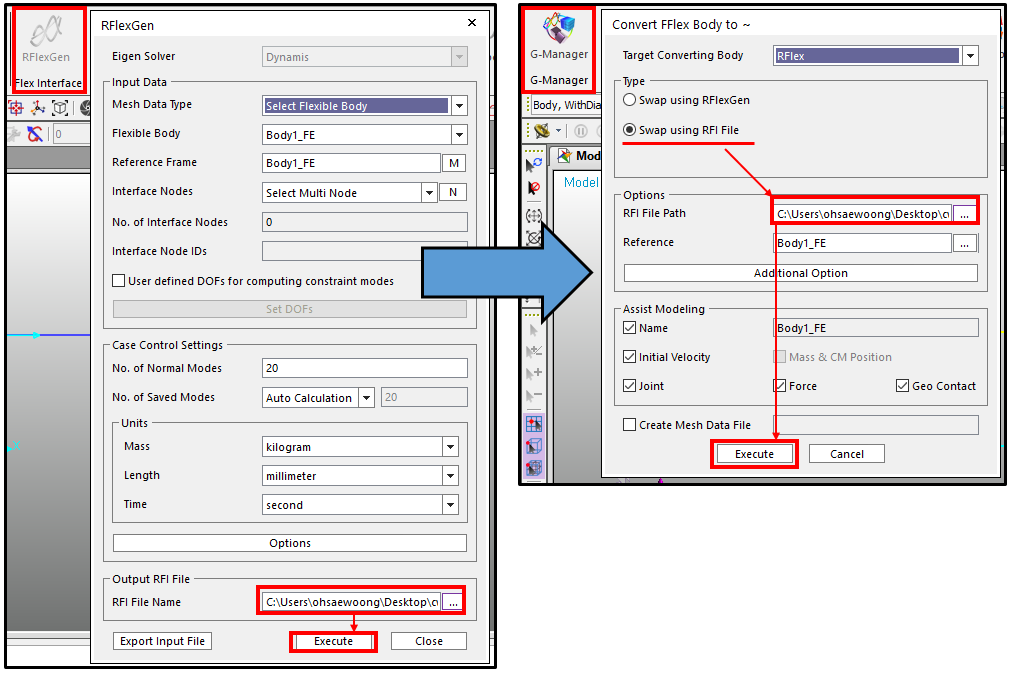
If you have already created an rfi file using RFlexGen, or you have an existing rfi file, select the ‘Swap using RFI file’ option. By clicking on the Execute button, the conversion into RFlex body can be completed.
Check the result.
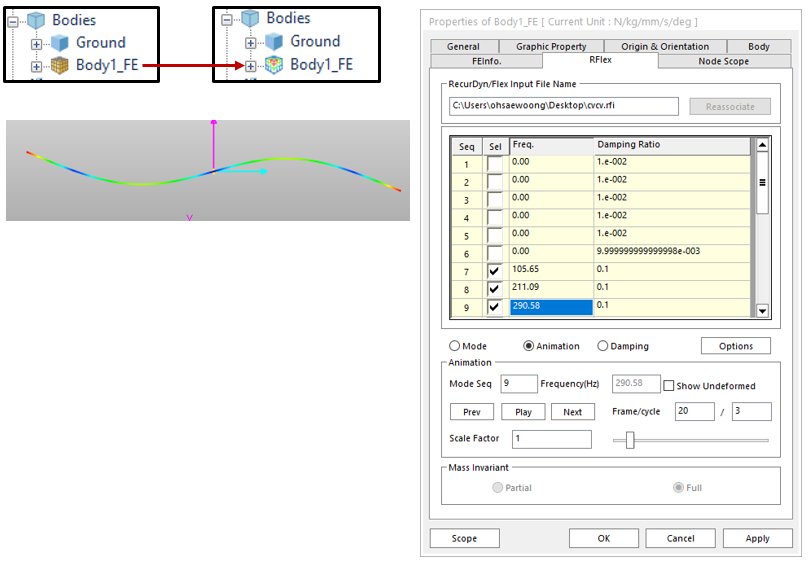
When the conversion is completed, you can see that the icon shape in the database window has changed as shown in the image.
In addition, you can review the frequency and mode shape for each mode in the Properties window.
